
We receive phishing emails often, but this time I wanted to take some time to review a recent one we received and to show red flags to tip you off on when something isn’t legit. Below is the step by step of what happens if you proceed through this phishing email. Click on any image to view it in full-size.
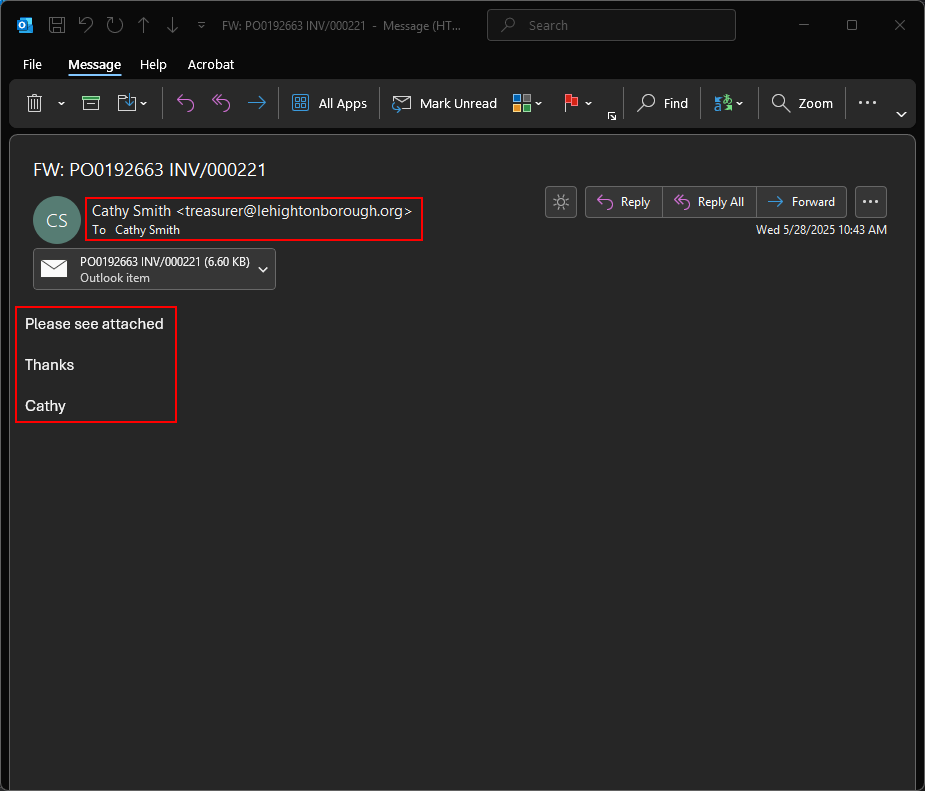
Here is the initial email. Here we can see our first red flag, the email was sent “From” Cathy, “To” Cathy. This should already start looking suspicious as borough personnel don’t send emails to themselves and BCC you. The other red flag is the suspiciously brief message.
What happened here is most likely a hacker took over the Cathy Smith’s email account and used her account to email a phishing email to everyone in her address book. By putting the “To” to herself makes it look 1% less suspicious than “Undisclosed-recipients” and it also hides who all was sent the same email. The third red flag is that the attachment is another email, which is unusual.
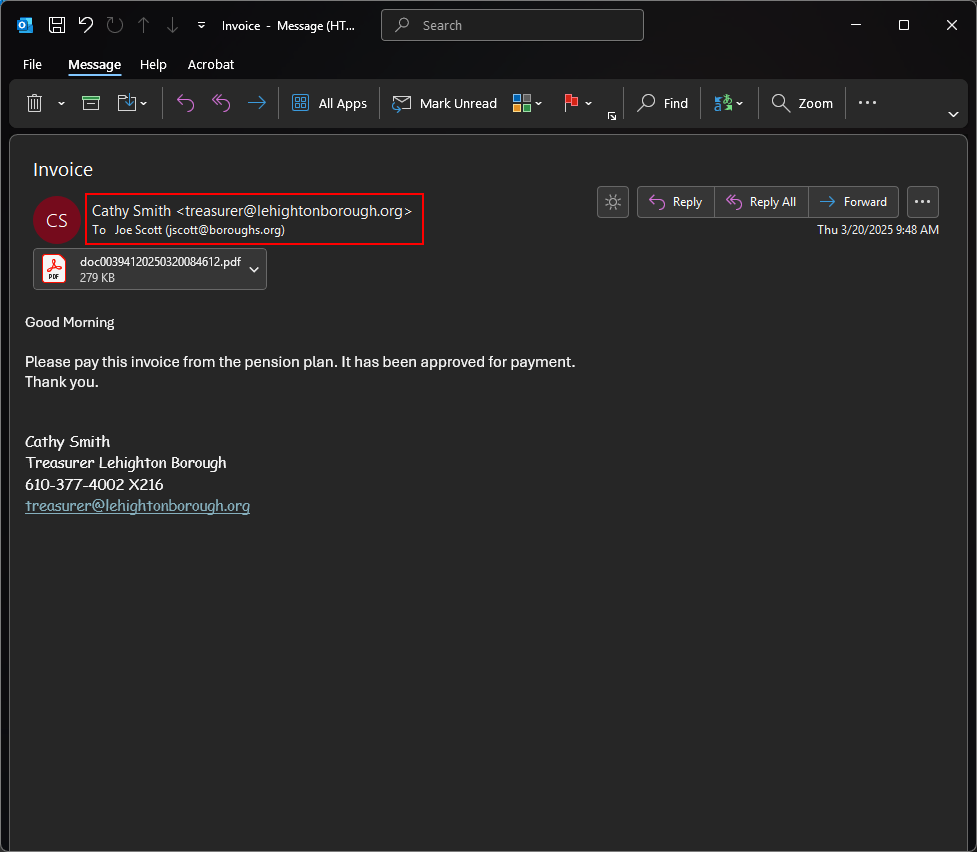
Here is a screenshot of a typical email from the borough when they send documents or invoices. Notice that the message is from Cathy to Joe. The attachment is also a PDF instead of another email, which is a more common way to send documents. Finally, the message looks more legitimate as the greeting is correct with the time of day, the message is a bit more fleshed out and there is an email signature.
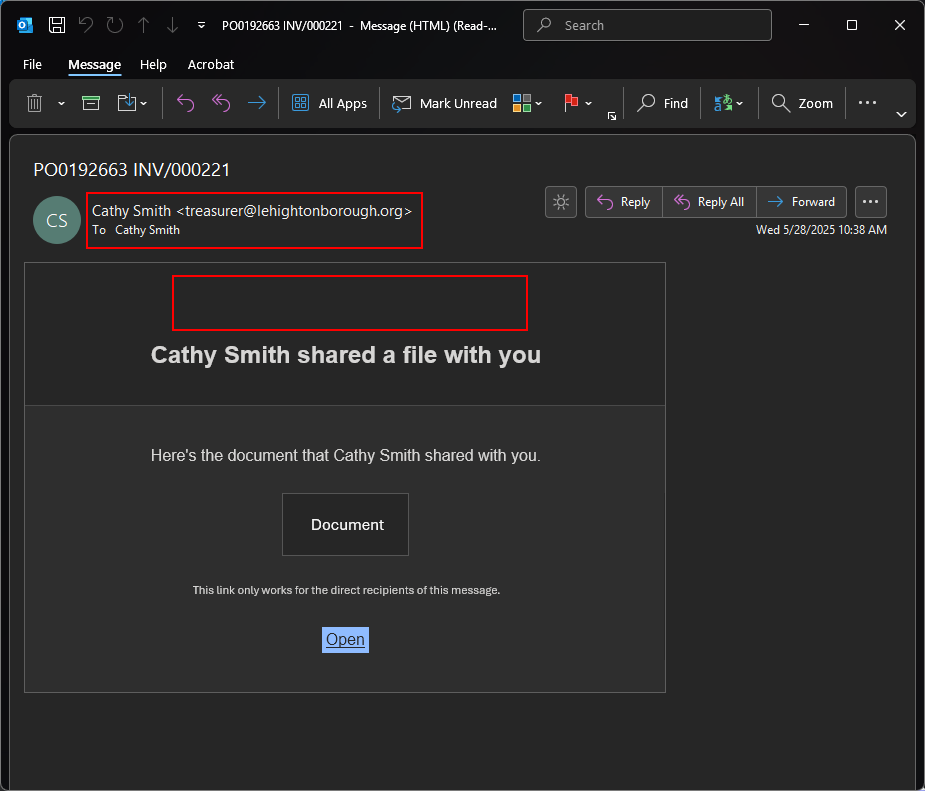
Looking at the attachment next, we see this email is also sent “From” and “To” Cathy. This is a red flag as well, as document sending systems don’t send to the person sending it. Another red flag is the lack of logo or any identifying information. Services generally have information about the system sending documents beyond just an “Open” button.
For some examples to get familiar with other 3rd party secure messaging systems please review the Secure Messaging Systems page.
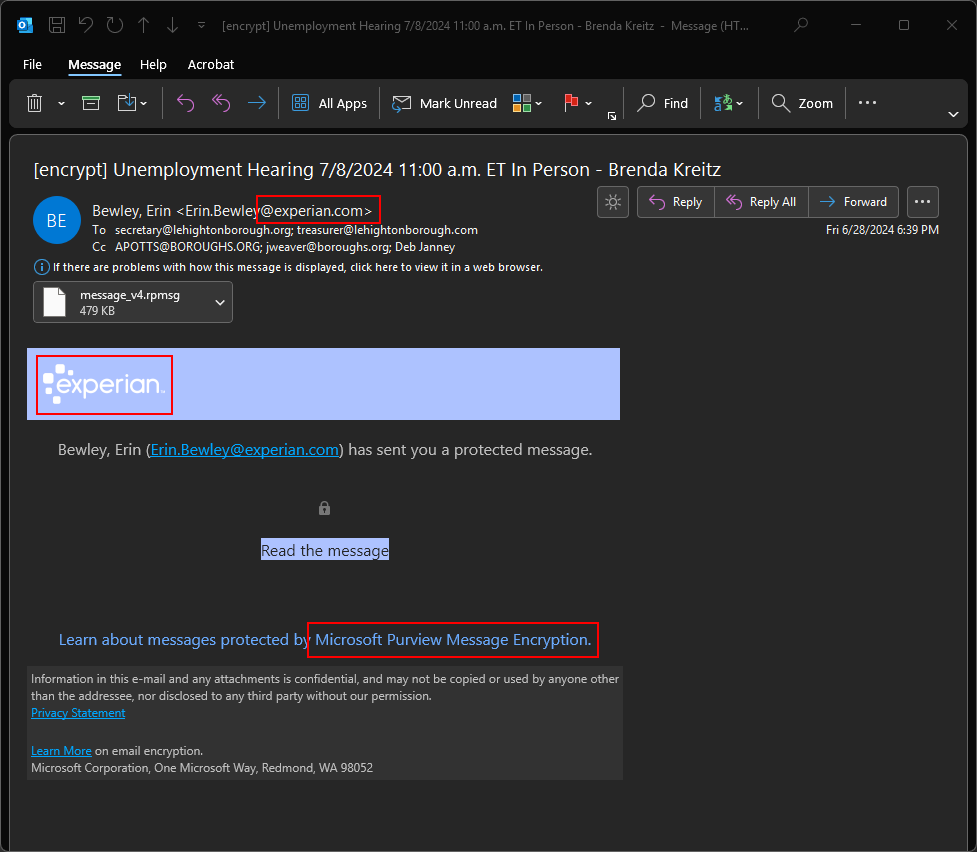
Assuming you were expecting a secure message from the borough, here is an example of what a typical secure message would look like from this borough. First, notice that the sender is from a known sender of secure messages (Experian in this case). There is also a logo that is clearly displayed to show who sent the message, also matching the senders email address. Finally there is also copy in the footer indicating the service used to send the message. In this case it’s Microsoft Purview Message Encryption (which is also one of the services we have documented to recognize).
While these are similar, it’s important to note the differences and where items are missing in the phishing attempt. Also keep in mind that the secure message is not usually sent as an attachment either.
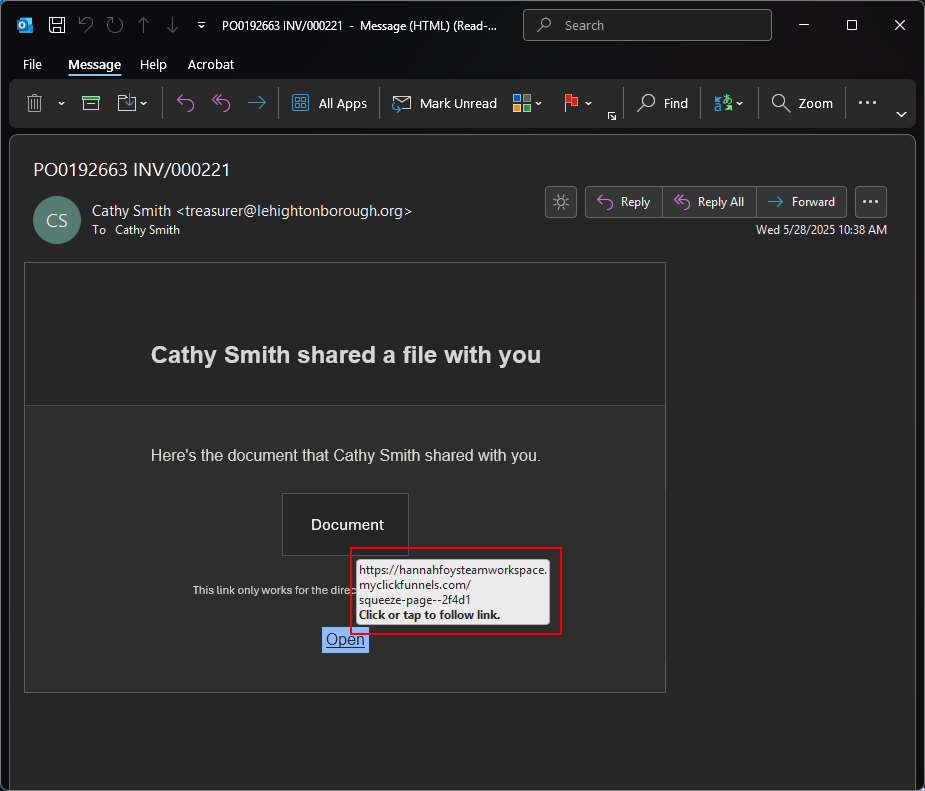
Here is one last red flag, mousing over the button we see the link here. It goes to a random website called hannahfoysteamworkspace.myclickfunnels.com. That does not sound like any common or familiar document sending service and you should halt and ask IT to investigate if you’re unsure.
Clicking on suspicious links there are typically two things that can happen. One, the link takes you to a website to try to install malware on your computer (uncommon) or to lead you to a fake login page to steal credentials (common). In this situation though, it happened to be the latter.
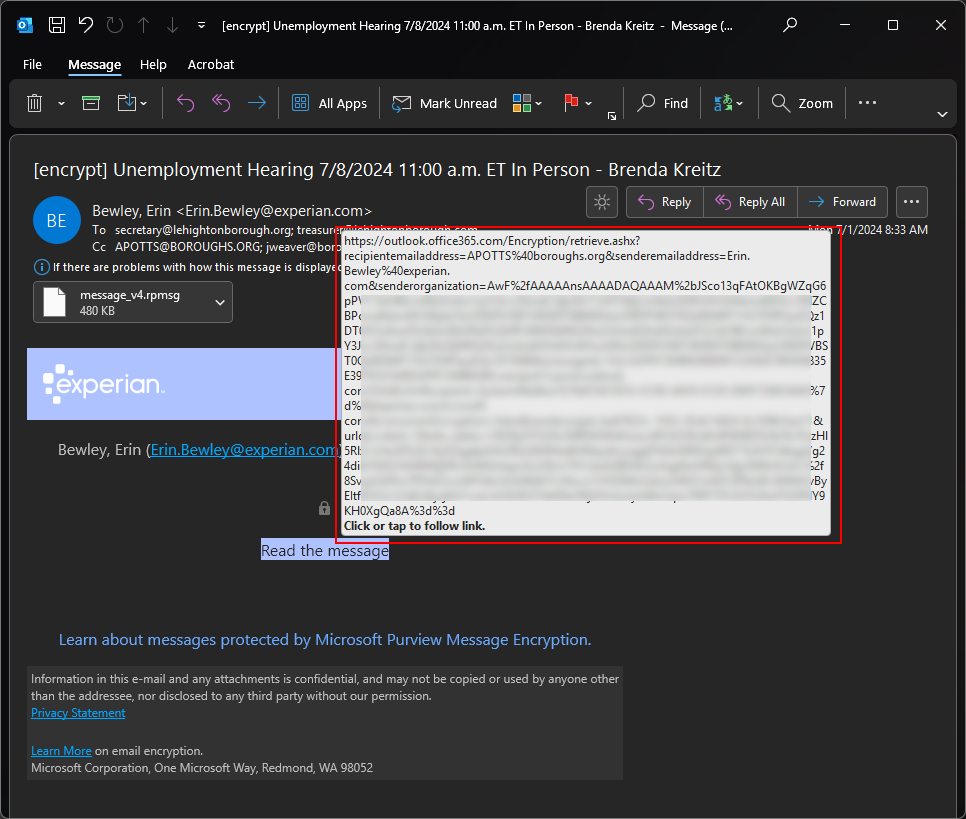
If we compare the link against the valid version you’ll see that the link takes you to outlook.office365.com which would make sense coming from a Microsoft service. This also is a familiar service used for sending secure messages.
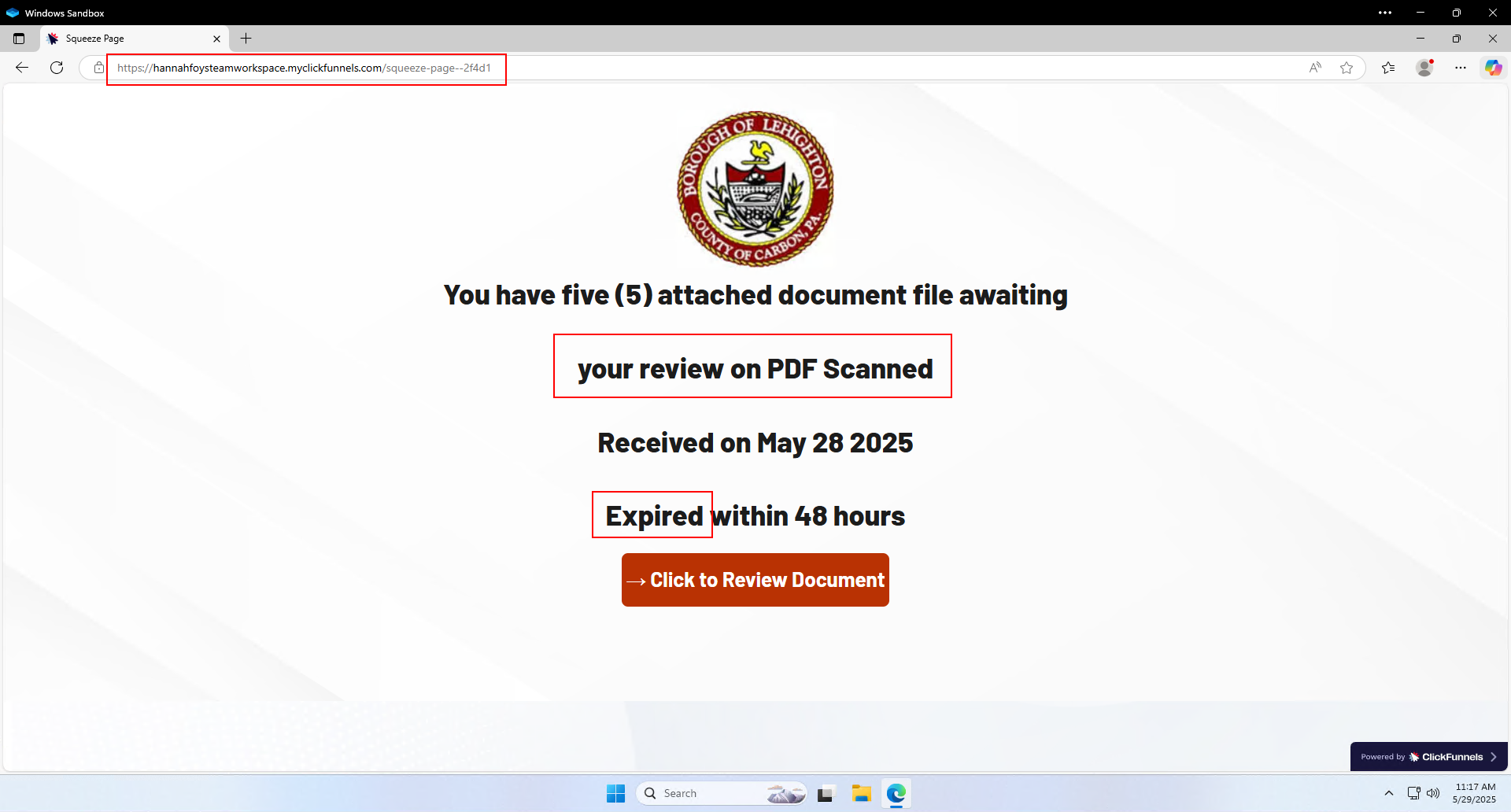
If you happen to click on the link, you will arrive at a page giving some weak reasons to click on a button to view the document. The first red flag is the URL again, not a common document sending service. The next red flag are the grammatical errors.
Finally, most document sending services (such as WeTransfer) expire documents after 30 days. Common tactics of phishing are: fear, trust, or urgency. So, the threat of a 48 hour lifetime is just to provide a sense of urgency and get you to click the link without verifying with the sender first.
You can review more about phishing tactics in our email security training video.
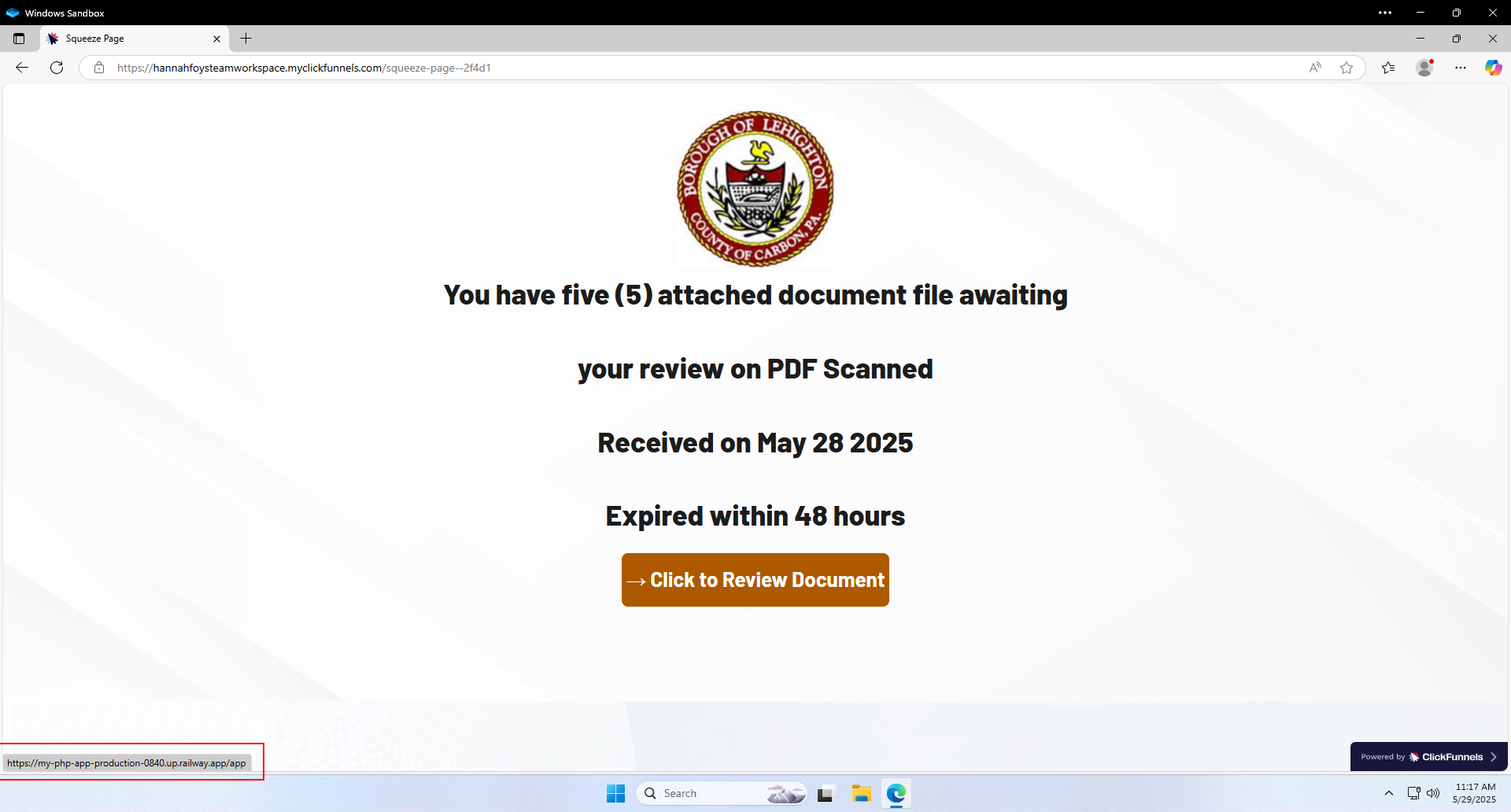
The final red flag is revealed when you mouse over the button. It goes to another random website called my-php-app-production-0840.up.railway.app. Also not a familiar service (it’s actually a randomly generated website URL), so another point to stop and reach out to IT if you are unsure about a link.
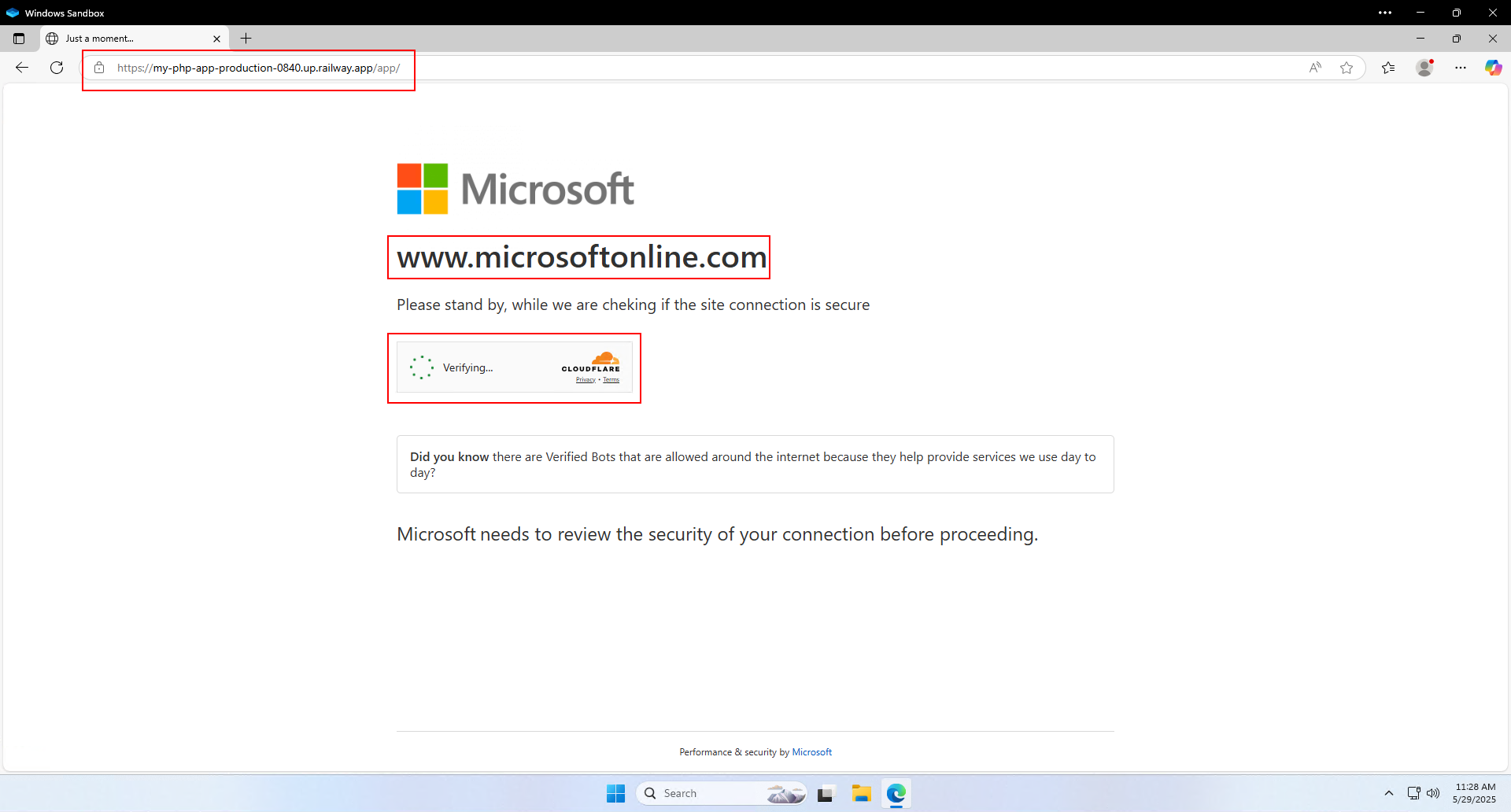
If you do click on the link and proceed, you will be greeted with their last line of defense. This screen poses as a way to make sure your connection is secure. But what it’s actually doing is preventing security services from visiting the actual phishing page and detecting it early before they can trick lots of people.
First red flag is again the URL, this is not a Microsoft URL. Second red flag is that it says “www.microsoftonline.com” in big bold letters; if you have to say it, it probably isn’t true. The final red flag is the Cloudflare captcha. Cloudflare is a separate company from Microsoft, why would Microsoft use Cloudflare to protect their page?
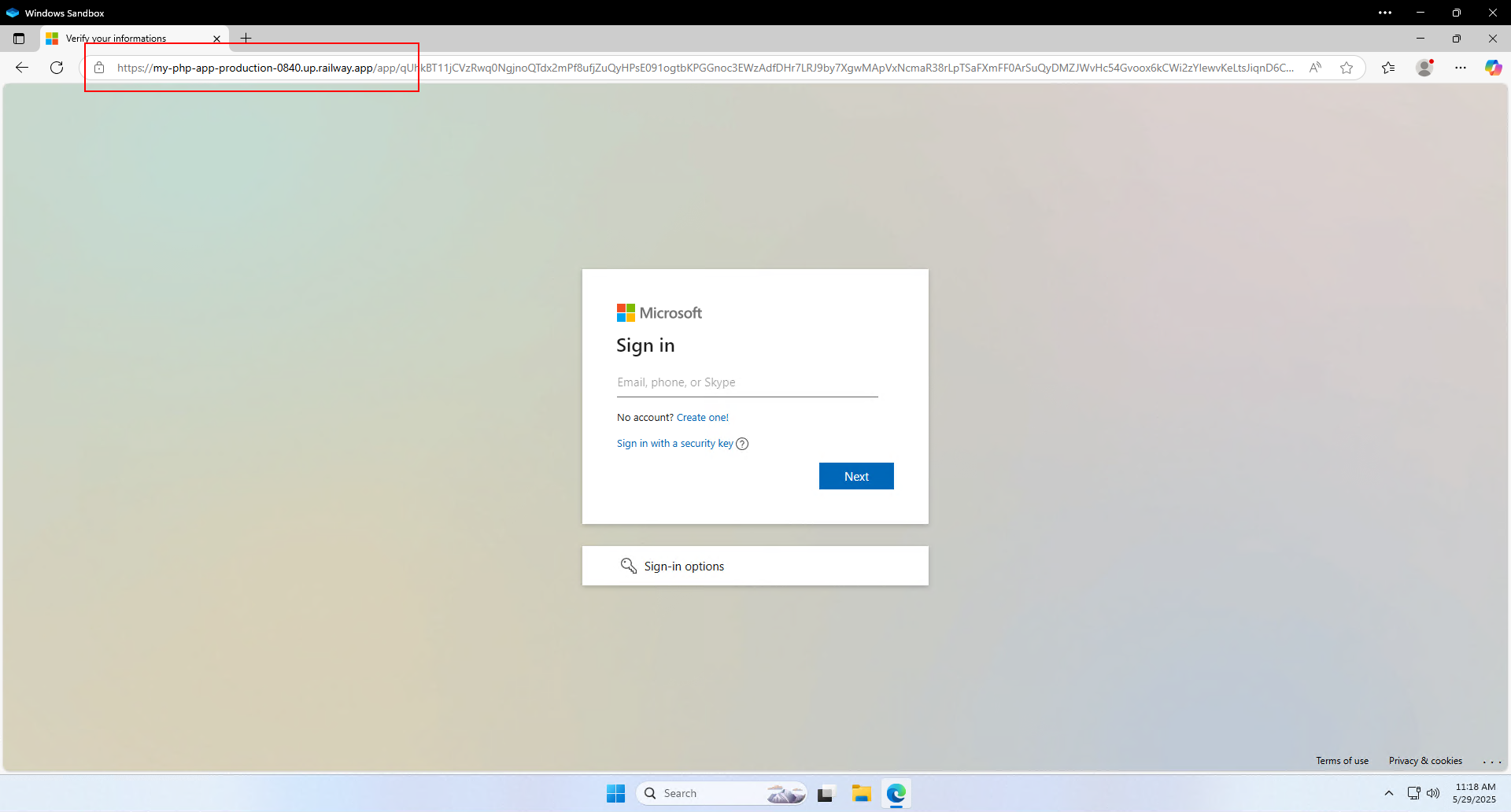
Once the captcha verifies you’re a person and not a security scanning service, it lets you in to the trap, the fake login page.
Honestly, the biggest red flag here is the URL. It is not login.microsoftonline.com which is the actual Microsoft login URL. The other red flags are only if you try to interact with anything other than the “Next” button as you’ll realize none of them work.
Finally, many fake login screens like this are MADE to fail when you login the first few times. I suspect this is to make sure they steal the correct password and/or to steal other passwords you might use in other accounts. So, even if it says it didn’t login, you’re still compromised.
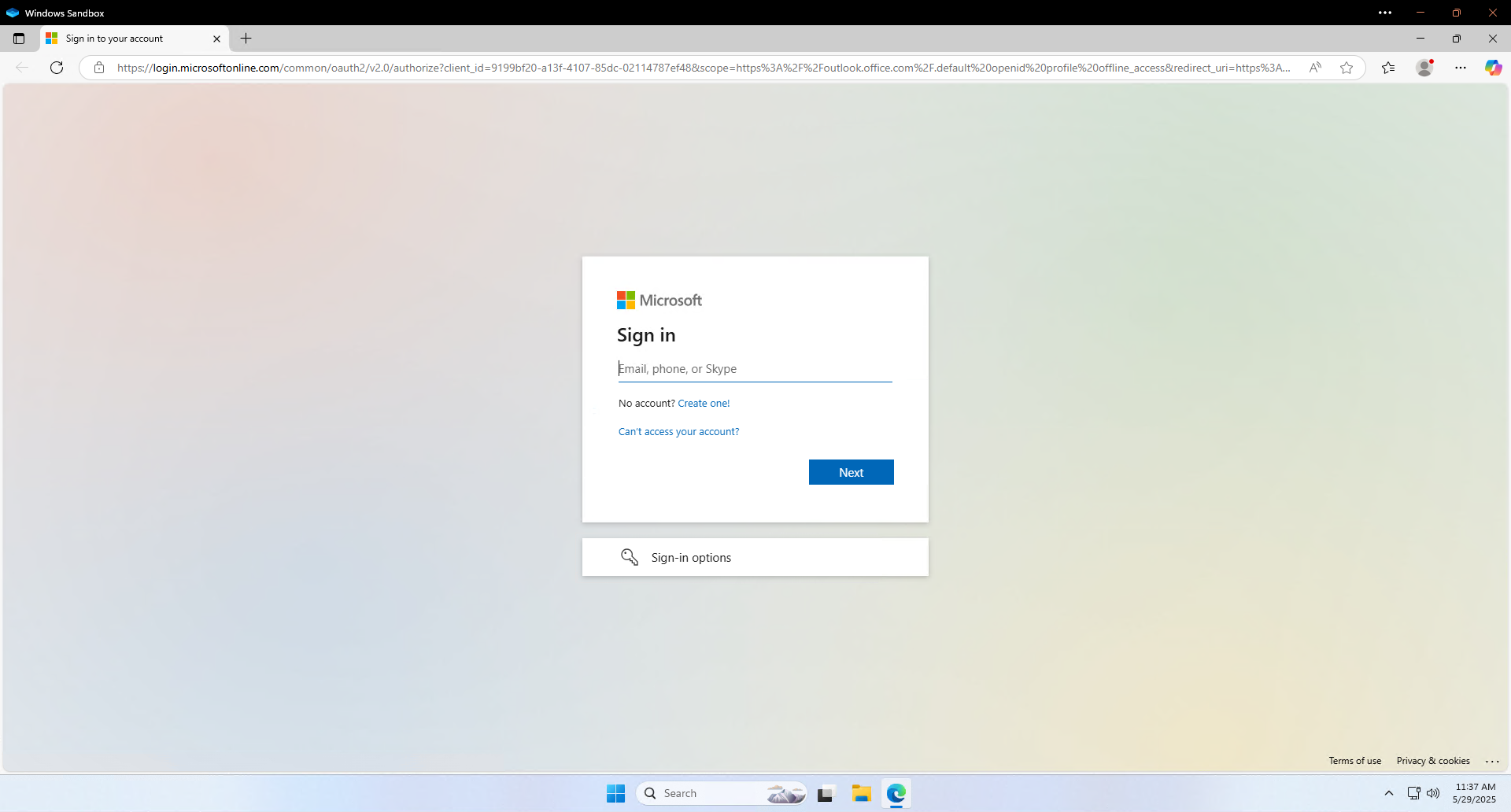
Here is a screenshot of the actual real Microsoft login screen. You’ll see they are EXTREMELY close, but notice the URL says login.microsoftonline.com. But as mentioned above, you can interact with all the buttons on this screen. So for example, you can click on the three dots in the bottom right corner.
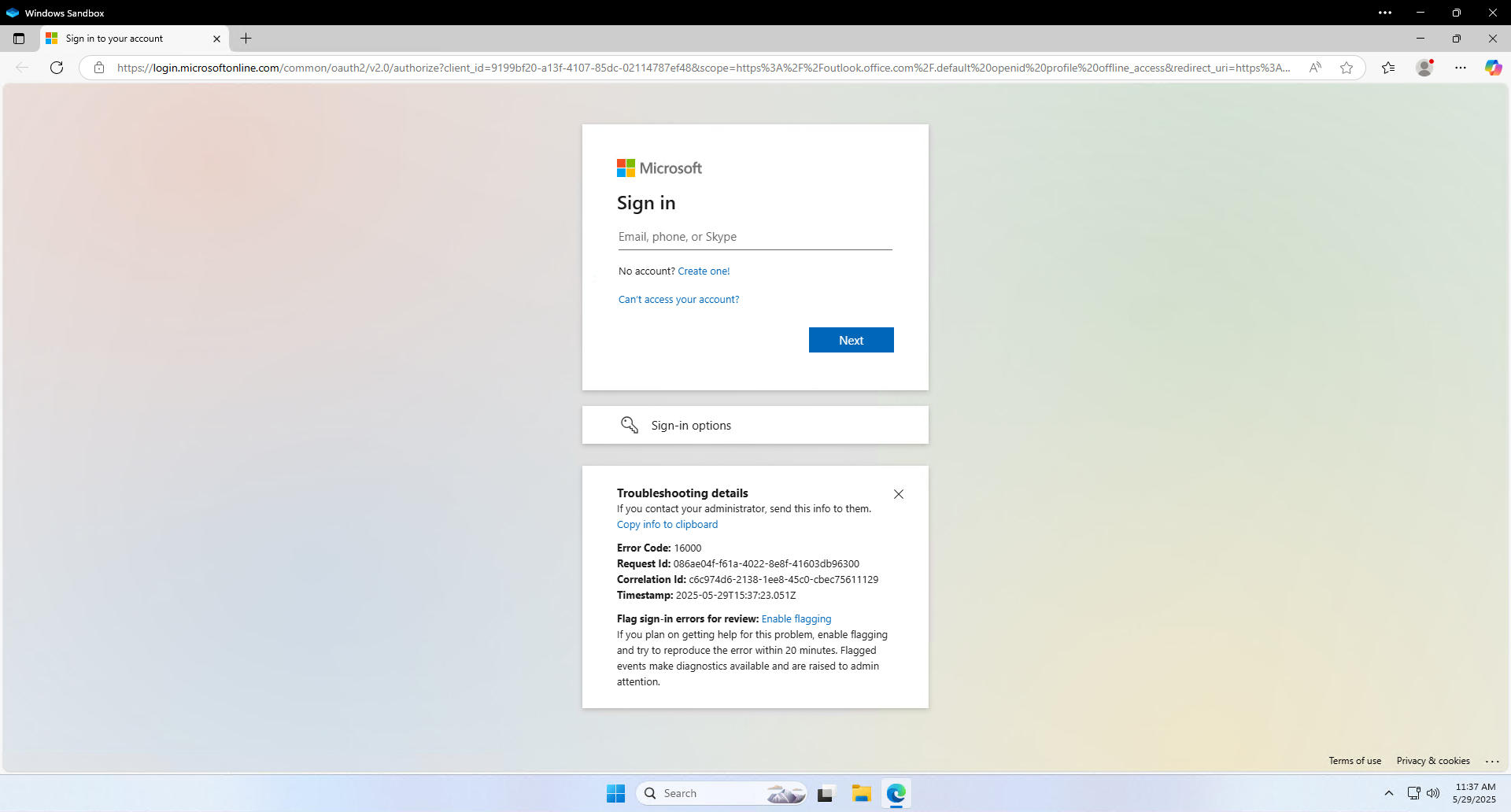
Clicking on those three dots brings up diagnostic information. On the fake page, those three dots didn’t do anything. So that might (all fake login pages are built differently) be one way to help validate the screen is legitimate. But the URL is going to be the most sure-fire way to know you’re on the right page.