
There may be situations where you will need to use two-factor authentication (2FA) or multi-factor authentication (MFA) to access an account online. Each service may support different methods of authenticating and some staff may have access to some methods and not others. Below I’ll outline some recommended setups that may apply to a particular situation.
Contents
Email Codes
This is when a code is emailed to an email address. This is becoming less common but easily supported. Just provide your work email address and wait for the code to arrive for you to enter for verification. This is slower than the OTP methods below, but doesn’t require anything extra to use. This method is slowly becoming insecure as well. Which means not all services support this option anymore.
One-Time Password (OTP)
This is the required ~6 digit code in order to validate your login. There are a few types of this method explained below.
Text (SMS) Message or Call (One-Time Password OTP)
This is when a ~6 digit code is either sent via a text (SMS) message or an call is made to you with a recorded message. Both messages rely on an active phone and phone number to receive. You can use your personal phone for this but it advised to use your work phone in order to keep things separate. This method is slowly becoming insecure and easy for attacks to compromise.
Authenticator Apps (Time-based One-Time Passwords TOTP)
This is where it generates a ~6 digit code every ~15 seconds in an app. This is best supported on mobile phones with an app. You can use your personal phone for this but it advised to use your work phone in order to keep things separate. Below are the apps that we recommend:
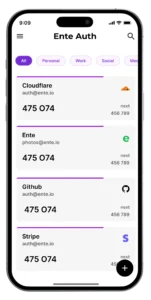
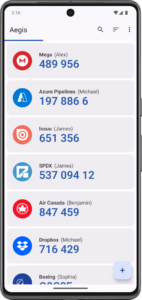
If you don’t have a company phone there is still a workaround by using KeePass. It’s advised not to do it this way because the intent is to have the code on something you carry in order to separate it from the password. So use this workaround as a last resort when the staff member does not have a work phone available.
We have a tutorial on how to setup 2FA for use with KeePass also.
Security Token
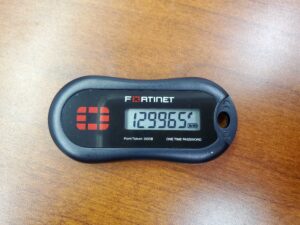
This is where it generates a ~6 digit code every ~15 seconds in a key-chain type device. This is the older style OTP before Authenticator Apps became more popular.
Security Key (FIDO2)
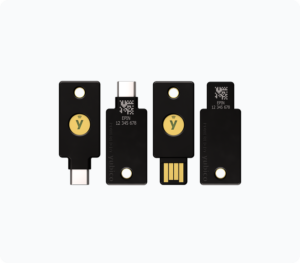
This is the most modern type of authentication and the most secure and preferred method. A security key is a physical device that you can connect to your computer or mobile device that allows you to just remember a single PIN to unlock the key and access any account connected to the security key. We currently recommend using a YubiKey. This would simplify the use of logging in to a physical hand-held device.
Any keys setup with this must also be setup with IT as a backup. The reason for this is that if the device is ever lost, you’ll have no way to get back into your account and IT would serve as a backup in this situation.
We have a tutorial on how to set up one for use with a Microsoft account also.