
For users that need to login to Microsoft accounts to retrieve secure messages, you may be required to configure 2FA to login. Below are instructions on how to get that setup for a Microsoft account.
How to login with a YubiKey
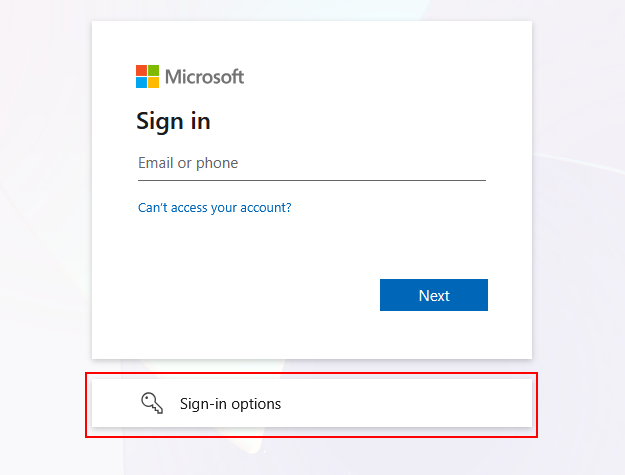
In this example I am trying to log into Microsoft by going to https://myaccount.microsoft.com/. It will direct me to login first, on the login screen I select “Sign-in options”.
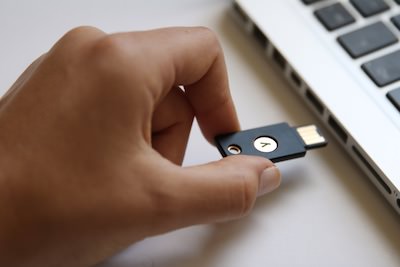
It will then ask which option you would like to use to sign-in. Insert the YubiKey at this time.
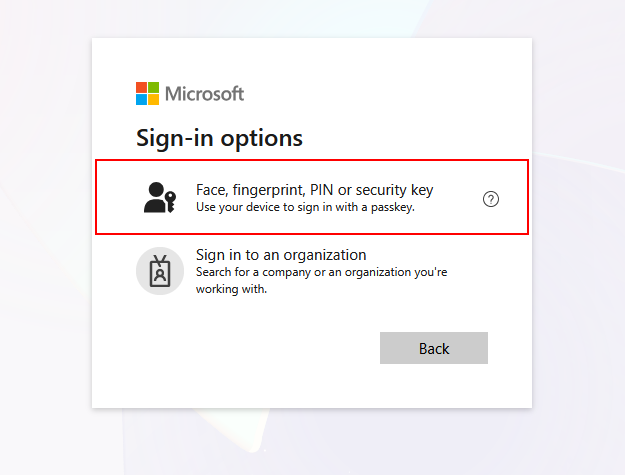
Once it’s inserted, select “Face, fingerprint, PIN or security key”.
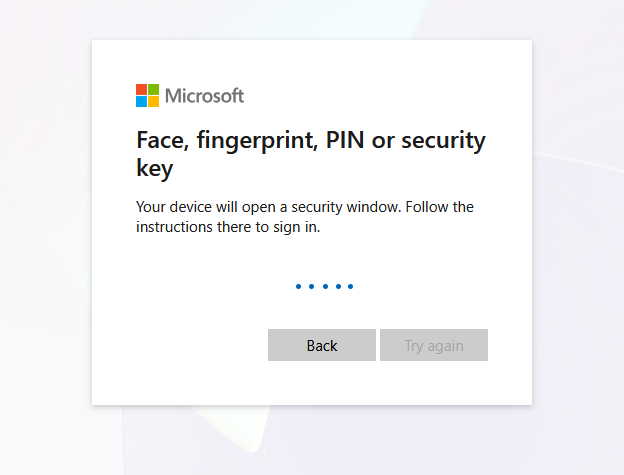
The website will then begin to initiate logging in with one of those methods, it takes a second or two.
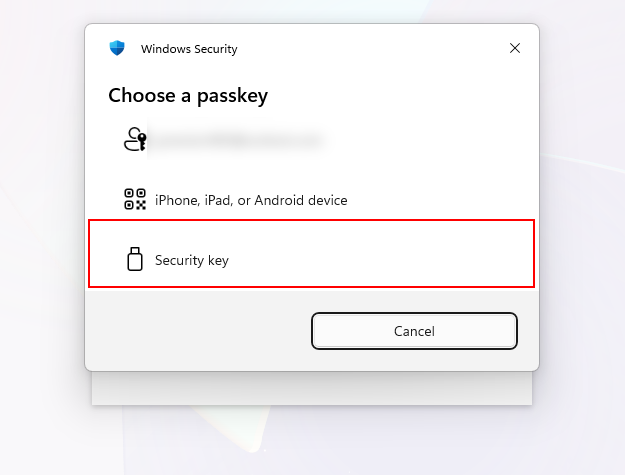
The window that pops up next is from Windows itself. It will ask you to choose a passkey (if you have more than one available). If it does ask you, just select “Security key” from the bottom options.
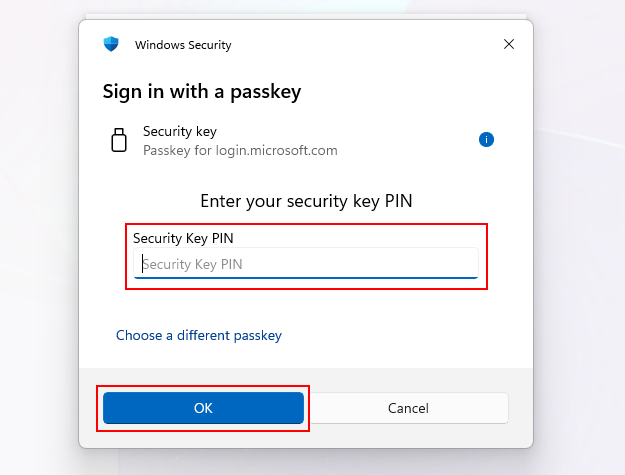
It will then ask you for the PIN to unlock the YubiKey. Enter the PIN at this time and click on OK to continue.
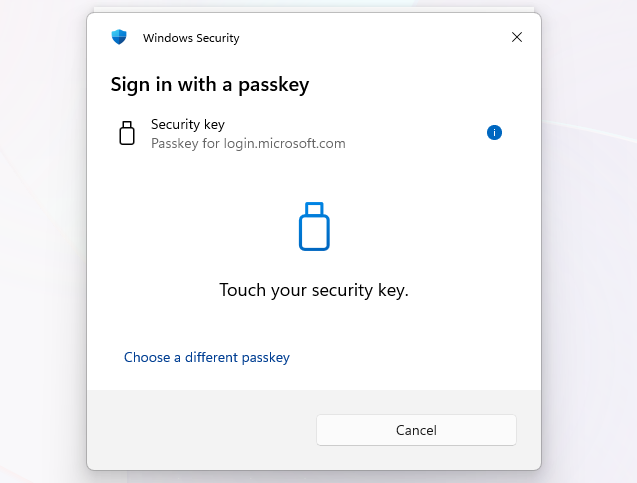
Finally, it will ask you to touch the YubiKey to authorize the unlock.
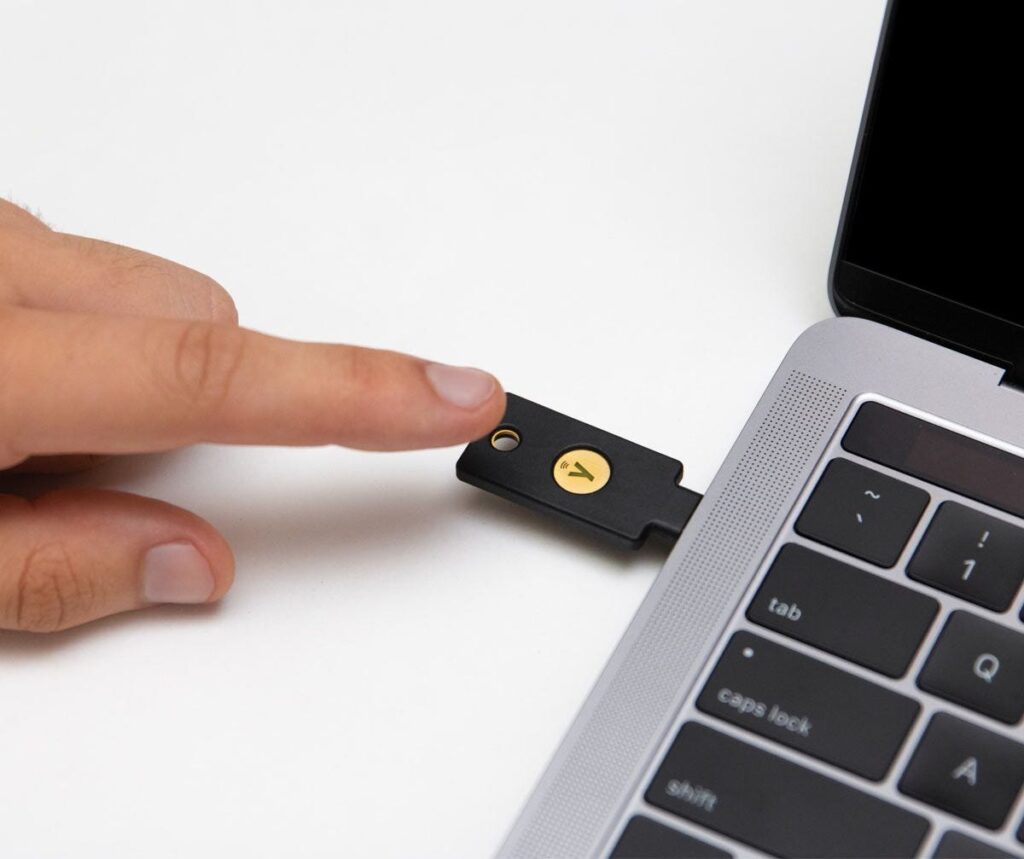
You will need to physically touch the gold circle to authorize the unlock. It’s not a button so you don’t need to press hard.
If everything well correctly you are now logged in! No need to remember the username, or password, or use a special code to login. At this point you can now remove the YubiKey and store it somewhere that it won’t get lost.
How to Setup an account with YubiKey
In order to use a security key you need to attach the key to the account itself. Here is an example walk-through for a Microsoft account.
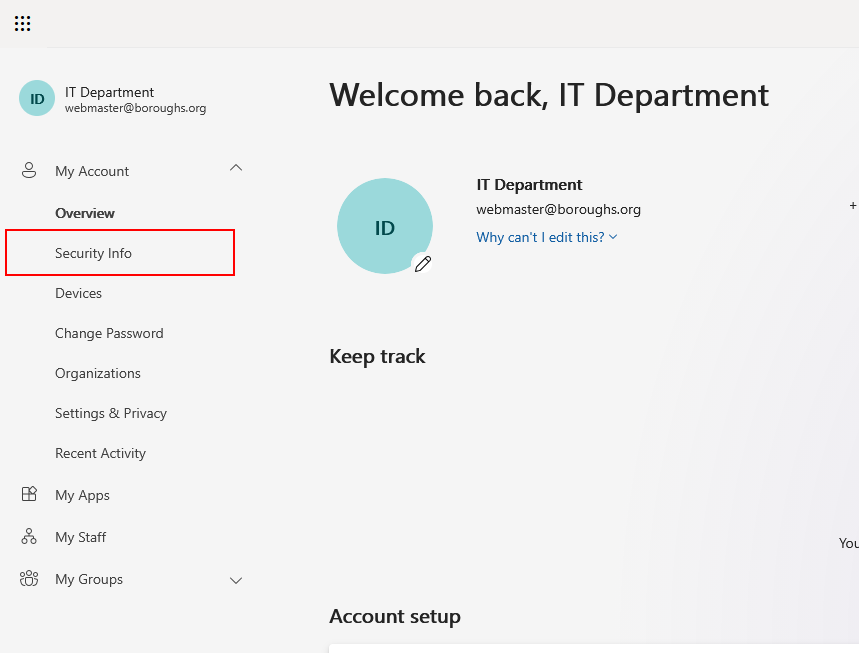
Go to your Microsoft account by going to https://myaccount.microsoft.com/. After you’ve logged in you should see this screen. Click on “Security Info” in the left sidebar.
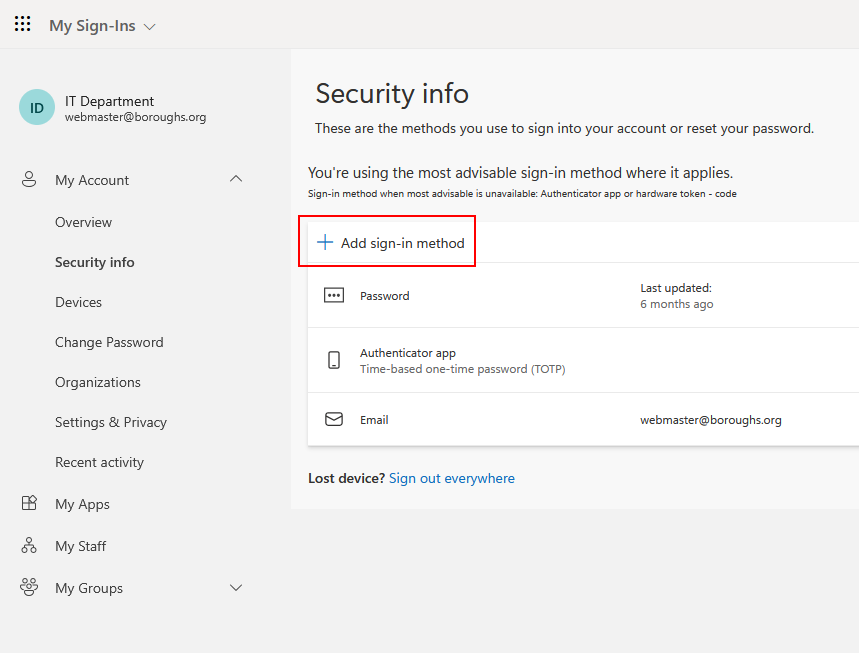
Next click on on “Add sign-in method”.
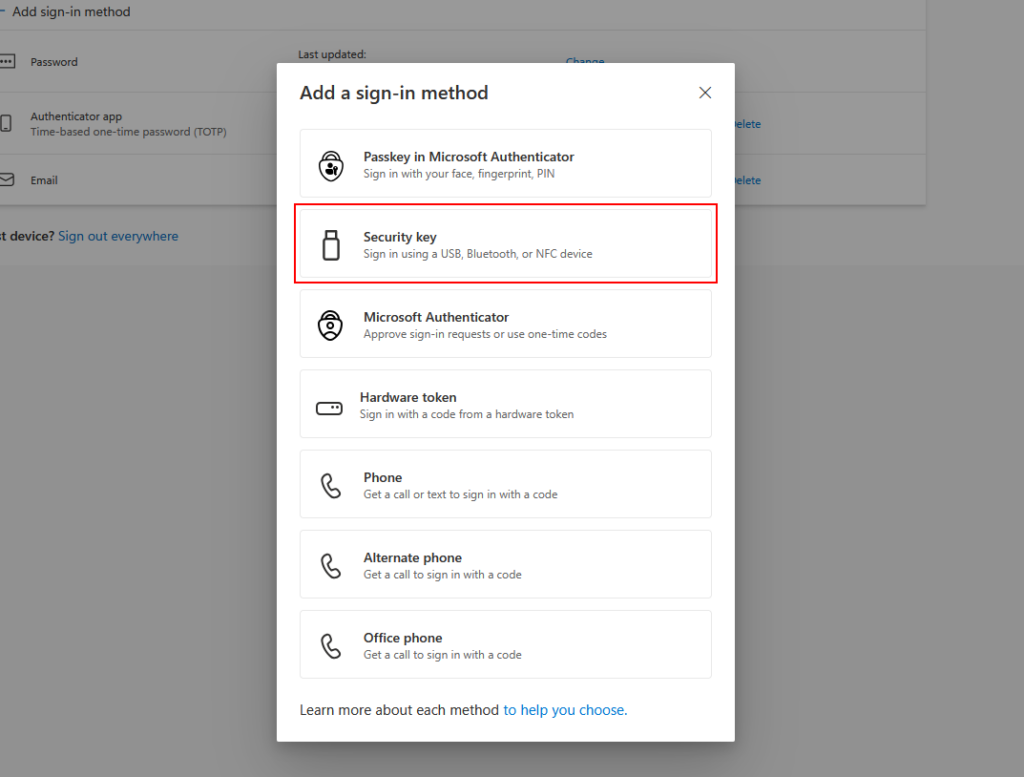
A modal will open with many options to choose from. Click on “Security key”.
At this point, insert the YubiKey into the computer, then continue.
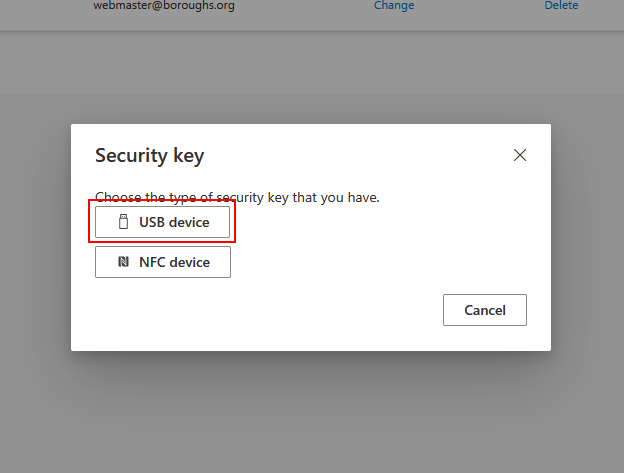
With the YubiKey inserted, click on “USB device”.
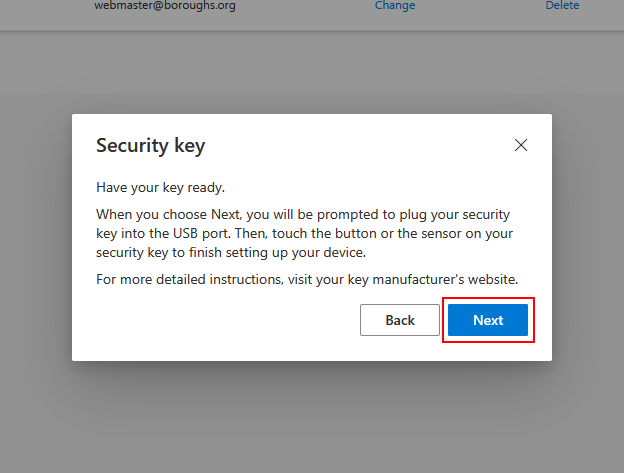
Since the YubiKey is already inserted and ready to go, click on “Next” to continue.
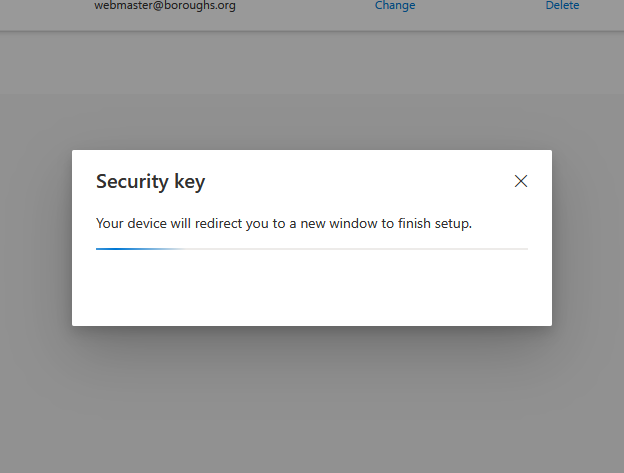
The website will then begin to initiate adding the security key, it takes a second or two.
It will then ask you for the PIN to unlock the YubiKey. Enter the PIN at this time and click on OK to continue.
It will then ask you to touch the YubiKey to authorize the unlock.
You will need to physically touch the gold circle to authorize the unlock. It’s not a button so you don’t need to press hard.
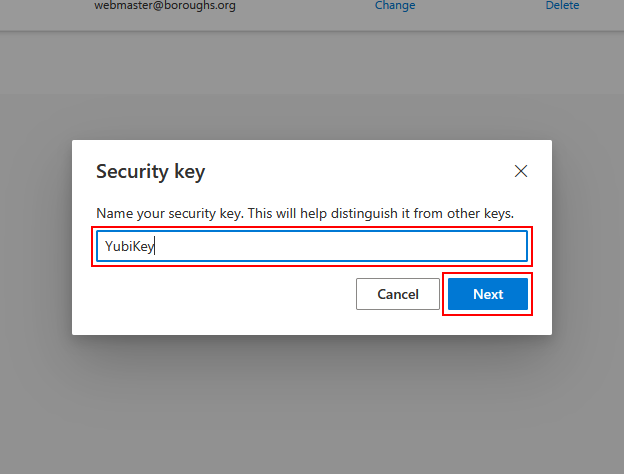
Once you’ve done that, the website will ask you to give a name for this key. Let’s name it “YubiKey” so it’s obvious where this key came from. Click “Next” to continue.
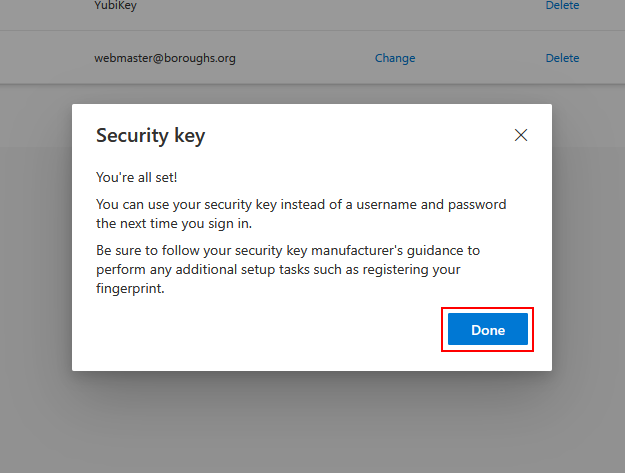
That’s the last step! This just tell you how you can login in the future. Click “Done” to close the modal.
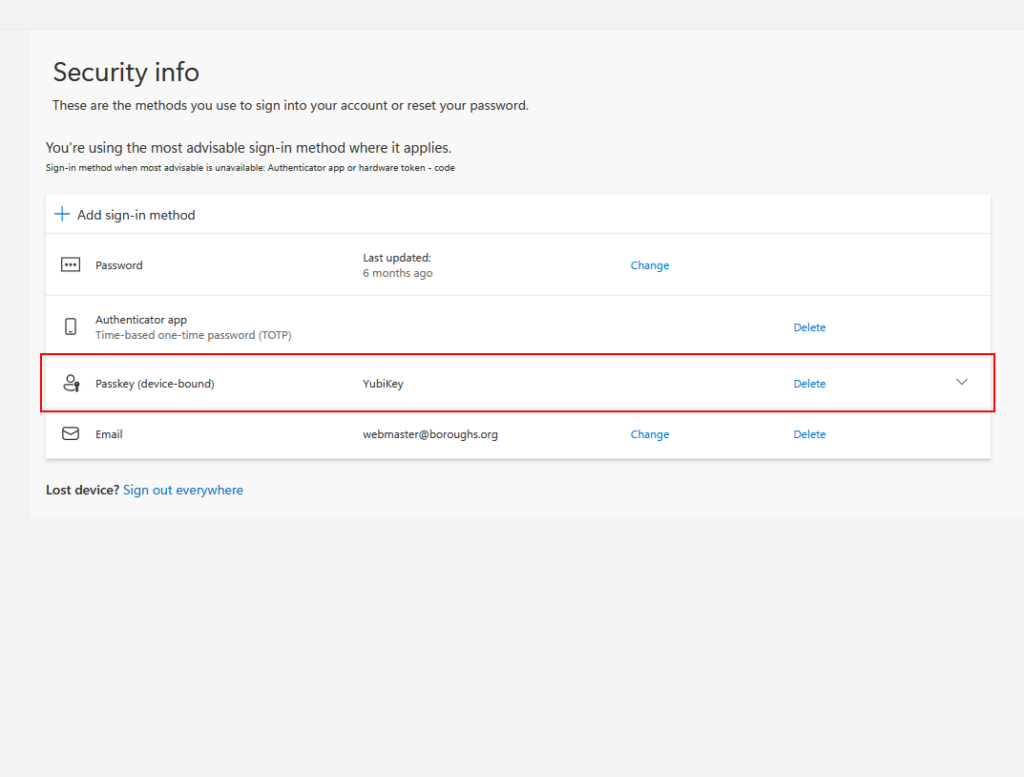
You will now see the YubiKey listed as valid methods to log into the website now.